Memberships and packs
Sell memberships and packs online and at the desk.
- Monthly and yearly memberships that renew
- Fixed-term passes for intro offers
- Credit packs with optional expiry
Elara is class booking and scheduling software for gyms, Pilates and yoga studios and sauna studios. Customers book and pay on your own website, the first person on a full class's waitlist gets the next place that opens, and staff check people in from each session's roster.
Monday
The last of twelve places goes to a customer paying with pack credits on your website. The next person to look sees the class is full and joins the waitlist.
Thursday
Someone cancels before your cancellation window closes and gets their credits back. The first person waiting is booked into the place and emailed.
Saturday morning
The roster shows one person hasn't signed your waiver. They sign on a staff device, and staff check everyone in.
After class
One member didn't come. Staff mark the no-show and either charge the fee on their membership to their saved card or waive it.
Add the booking widget to your site. Customers pick a session, sign your waiver if they haven't yet, and pay without leaving the page.
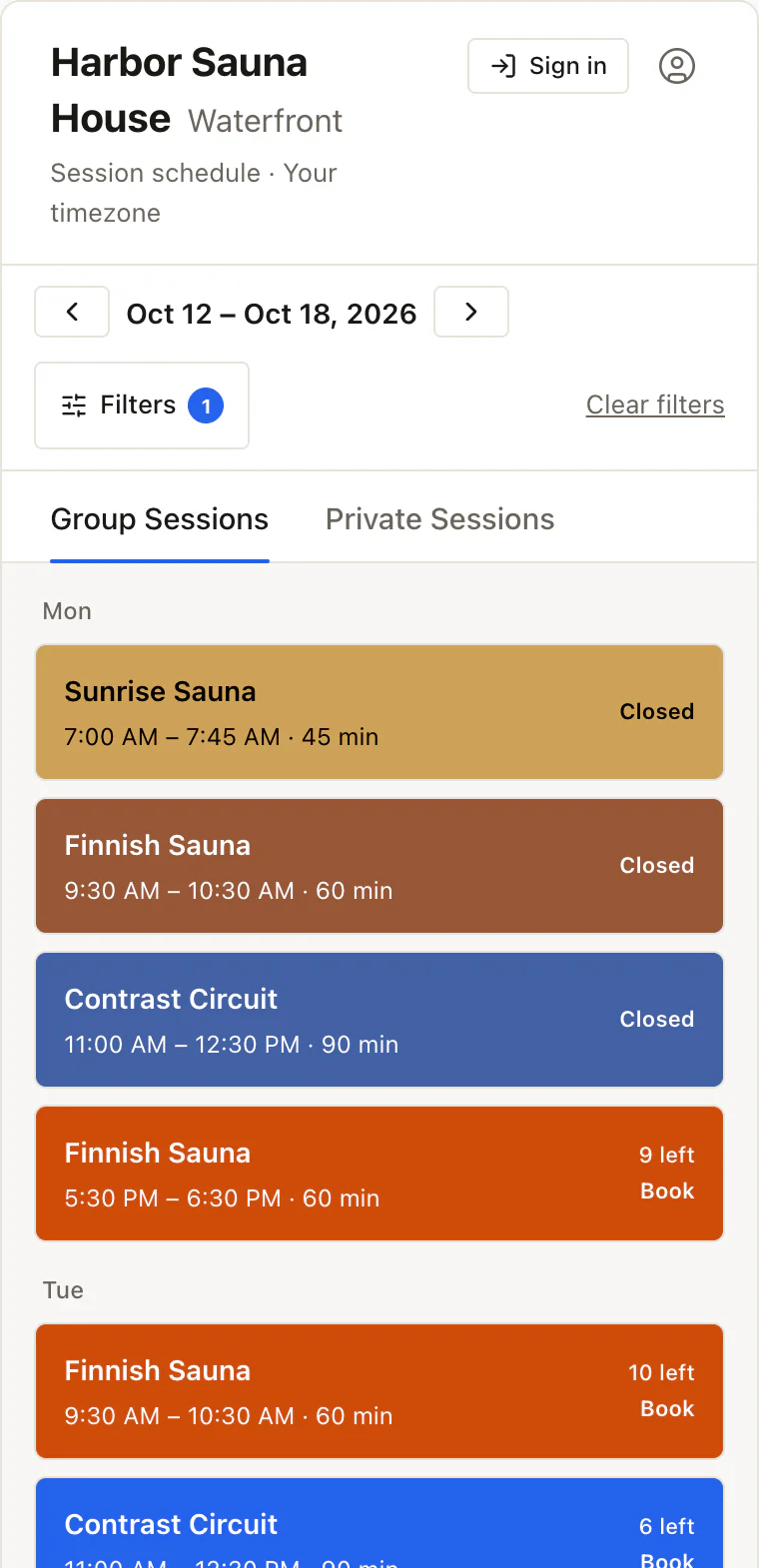
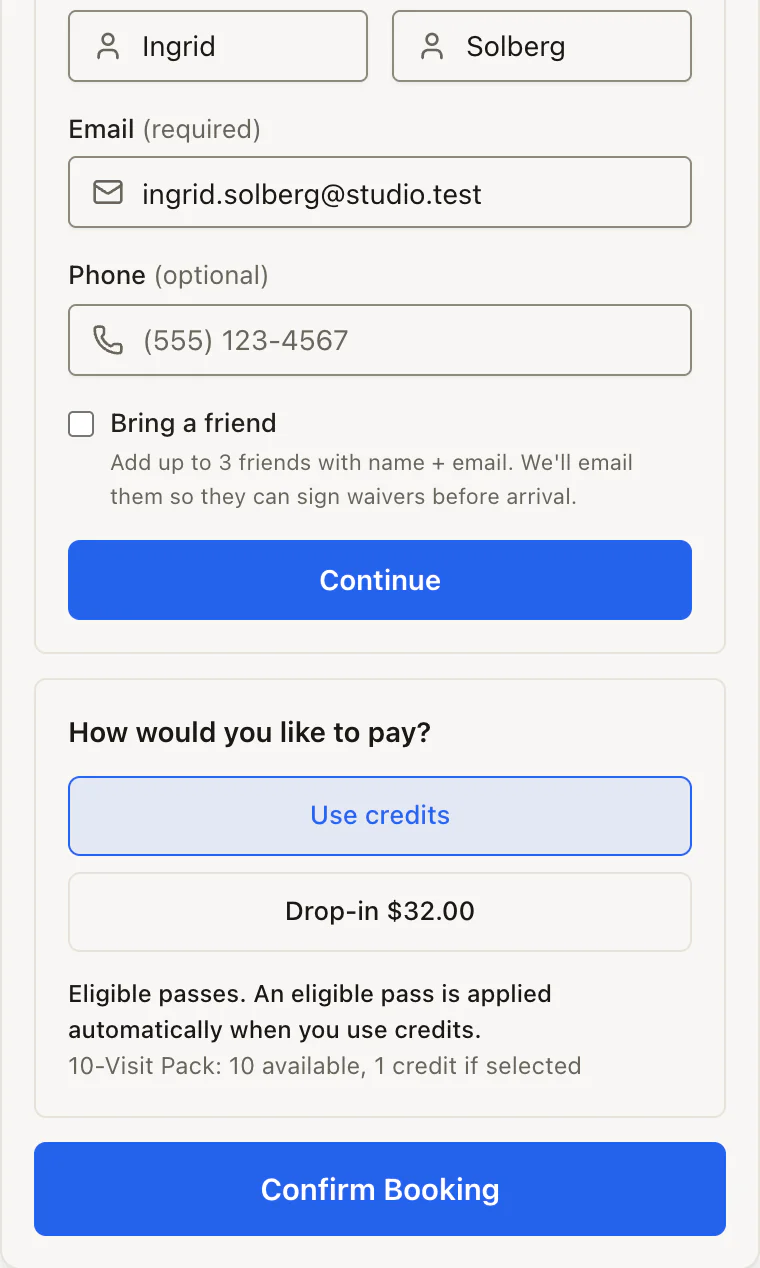
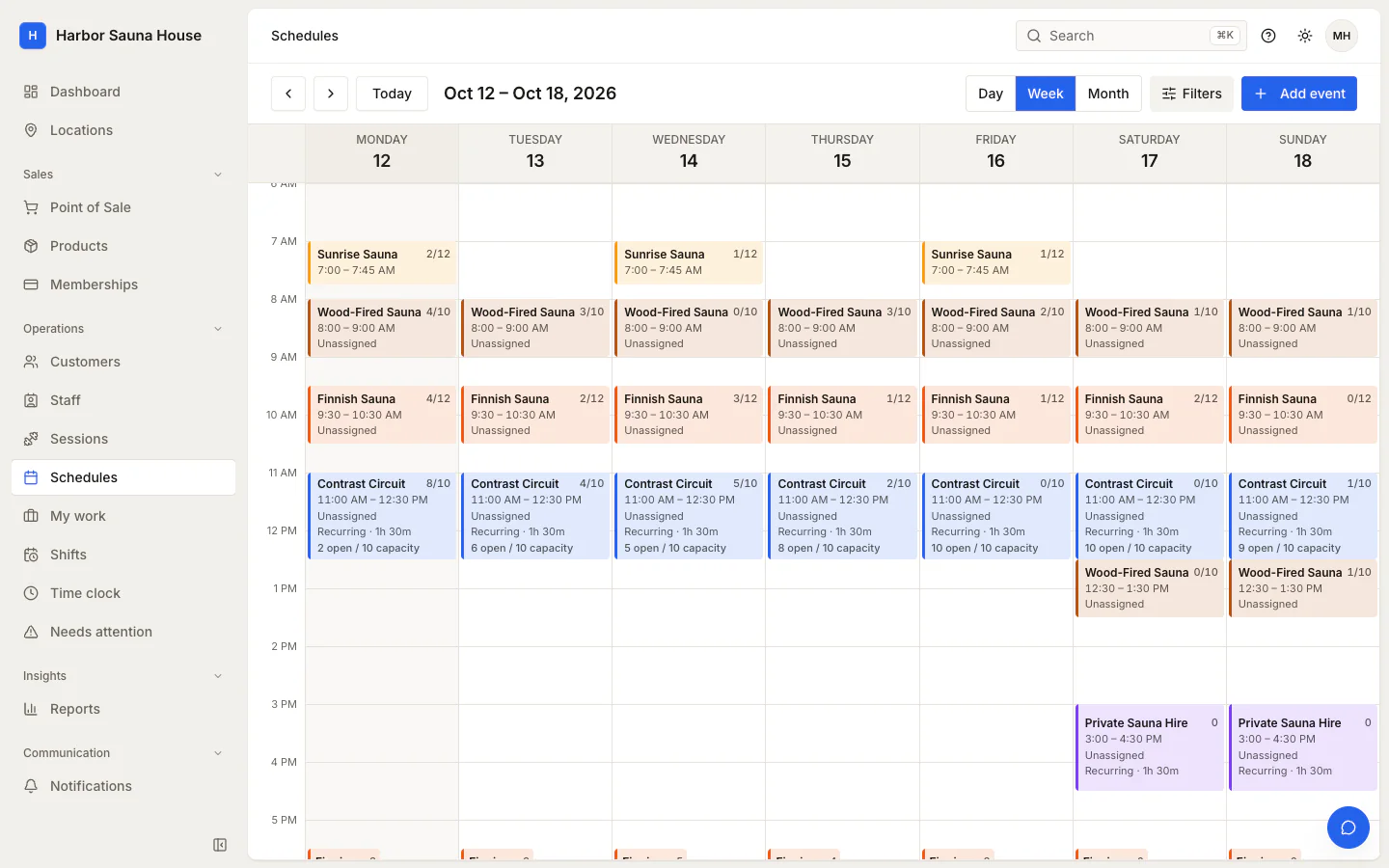
Each session has its places, drop-in price and credit cost. Its schedule repeats it daily, weekly, monthly or on the days you pick, or runs it once.
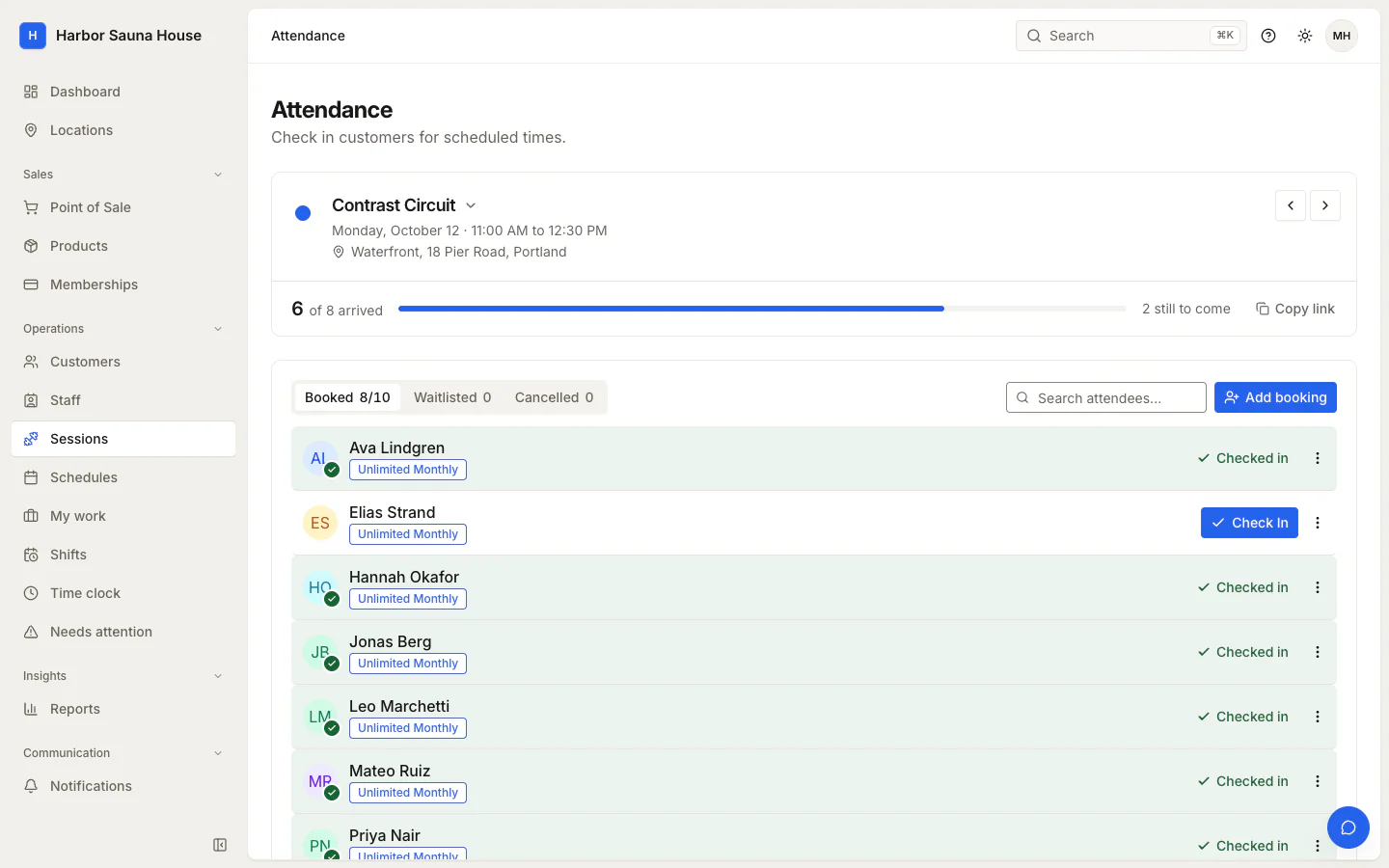
Each session's roster lists who's booked, who's new and who still has a waiver to sign. Staff check people in, mark no-shows and add walk-ins from it.
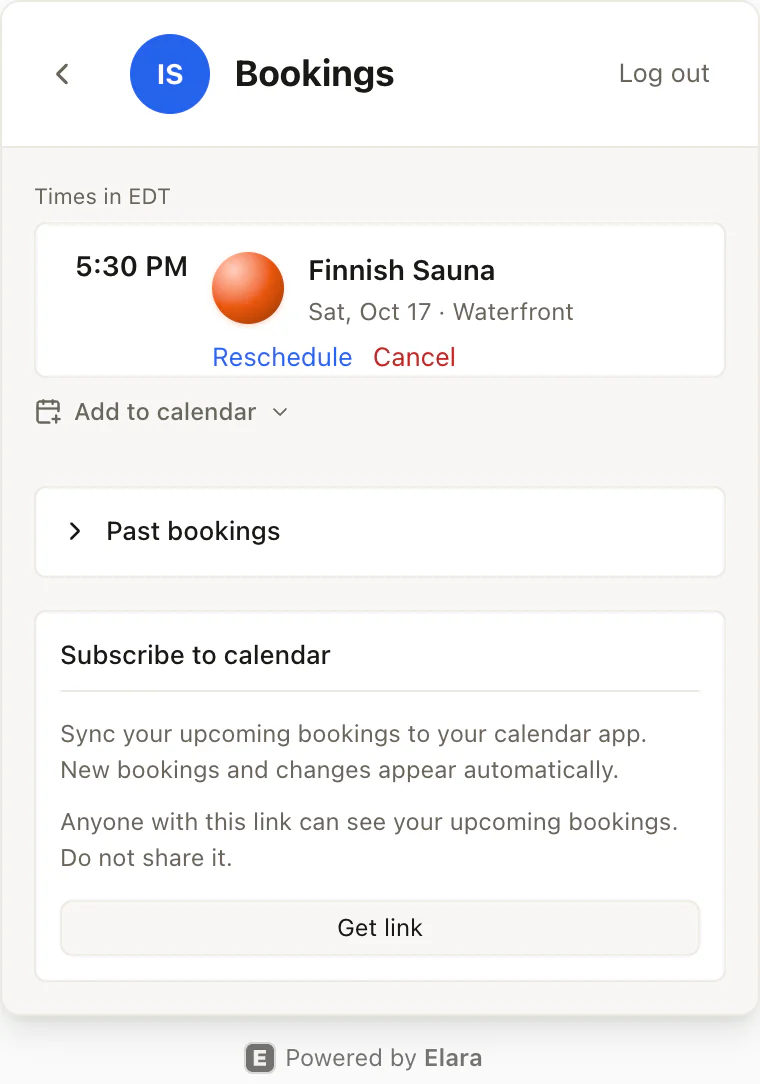
Customers sign in on your website with a password or an emailed link to see and change their bookings.
A signed-in customer adds friends to the same checkout. Each friend takes a place and gets their own customer record, and a friend who's new to you gets an email with a link to sign your waiver.
Give a membership guest passes each month. At checkout, a member uses one to cover a friend's place.
A group books a whole session for one price or credit cost, as long as nobody has booked a place in it yet.
Sell a session only as a private booking, with no shared places.
When a session is full, customers join its waitlist. If a place opens before booking closes, the first person waiting is booked and emailed.
Hold a session's bookings as requests until staff approve them. Payment and credits are taken when the customer books, and refunded if you decline.
Every session belongs to one of your locations and runs on that location's local time. Your customers, waivers and the booking rules below are shared by the whole studio.
When to charge more for full evening and weekend sauna sessions and when a quiet-hours discount pays, worked from demand by time slot with charts.
The cancellation window, member fees and pack penalties 78 class studios post, and when charging every late cancel collects more than empty places cost.
Follow each released sauna place to whether the replacement came, find where promotions are lost, and count waitlists by person before adding sessions.
Set a sauna cancellation window where a released place still refills with a bather who comes, then write terms for packs, memberships and paid places.
How many people a class needs once you count only the revenue that leaves when the slot goes, with a worked midday class, by share of members.
Elara and Mindbody compared for class and sauna studios: payments, one waiver or several, shared and private booking of a session, tiers and switching.
A Vagaro alternative for fitness, Pilates and sauna studios: where clients book, whose processor charges and keeps cards, and what to ask Vagaro.
A Glofox alternative for Pilates and class studios: one credit per booking against a credit cost per session, Glofox Payments terms and private bookings.
Define the sessions you offer: recurrence, category, level, capacity, pricing, credit cost, and private-booking options.
The booking calendar: view sessions by day, week, or month, and add, edit, or remove scheduled sessions with recurrence.
Check customers in for a session, manage the waitlist, handle cancellations and refunds, and collect waiver signatures.
Set up the schedule so customers can find sessions, book places, and complete checkout.
Customers add friends to a booking, each friend takes a place, and new friends get an email to sign any waiver.
Configure cancellation windows, advance-booking limits, booking cutoffs, waitlist size, the bring-a-friend limit, auto-confirm, and private bookings.
Yes, if your website lets you add custom HTML. You paste the widget code and a widget tag into the page and add your domain to the allowed list.
No app. They book on your website. A first-time customer can book a drop-in without an account. After that, customers sign in with a password or an emailed link, and they need to sign in to bring friends or pay with credits.
On a session with a drop-in price, joining the waitlist charges that price, and it's refunded after the session if no place opens. On credits, nothing comes off until the customer is booked in.
Why a full sauna waitlist can still leave empty placesYes, until the cancellation window you set. Cancelling before the window closes returns their credits, and a card payment for a single place is refunded automatically; gift card and cash payments are refunded by staff. Inside the window they contact you. Staff then choose whether to return the credit or payment and, for a membership with a late-cancellation fee, whether to charge or waive it.
Sauna cancellation policy: set the window, then write the termsStaff book customers with their membership or credits, or add them to a roster at no charge. To charge for a single visit at the desk, book the customer unpaid and mark the booking paid once you've taken the money, or sell a pack at the point of sale and book with its credits.
Yes. Each session you set up has its own drop-in price and credit cost, so a Saturday morning session can cost more than a weekday afternoon one.
Peak and off-peak sauna pricing: when to charge more and when to discountYes, for gyms that run scheduled classes with a set number of places. Each class has its instructor, places and credit cost, and members book from your website.
Customers book a place in a session rather than a particular spot or machine. For one-to-one sessions, schedule a session with one place and an instructor.
Yes. Each location has its own sessions, a widget can show one location or all of them, and staff can be limited to the locations they work at for sessions, bookings, shifts, timesheets and reports. Each location's sessions run on its own local time.
Sell memberships and packs online and at the desk.
Get paid online and at the desk, into your own account.
Get every waiver signed before check-in.
Tell us how many locations you run and what you use today. We'll email you a quote and, if you're switching, what we can bring across.